

Creating Audiences in GA4 Using Videobot Events
This guide provides clear, step-by-step instructions for creating targeted advertising audiences in Google Analytics 4 (GA4) based on Videobot event tracking.
TIP
You can also create and manage GA4 audiences directly from the Videobot dashboard. See Managing Audiences from the Dashboard below. The dashboard builder includes pre-filled templates for common Videobot use cases and writes audiences to GA4 over Google's Analytics Admin API.
Prerequisites
- Google Analytics 4 (GA4) set up and connected with your website.
- Users must have explicitly given marketing consent to be included in marketing audiences.
- Ensure GA4 dimensions, such as video names and IDs, are properly configured to capture additional event parameters. Refer to GA4 Setup Guide.
Important Notes
- Audiences in GA4 cannot be edited once created. Double-check all settings carefully before saving. If you need to change the criteria later, you will have to create a new audience.
Step-by-Step Guide
Step 1: Identify Relevant Videobot Events
Determine which Videobot events you want to use for audience segmentation. Commonly used events include:
videobot_video_startedvideobot_video_completedvideobot_interaction
Step 2: Navigate to Audience Builder in GA4
- Log in to your GA4 account.
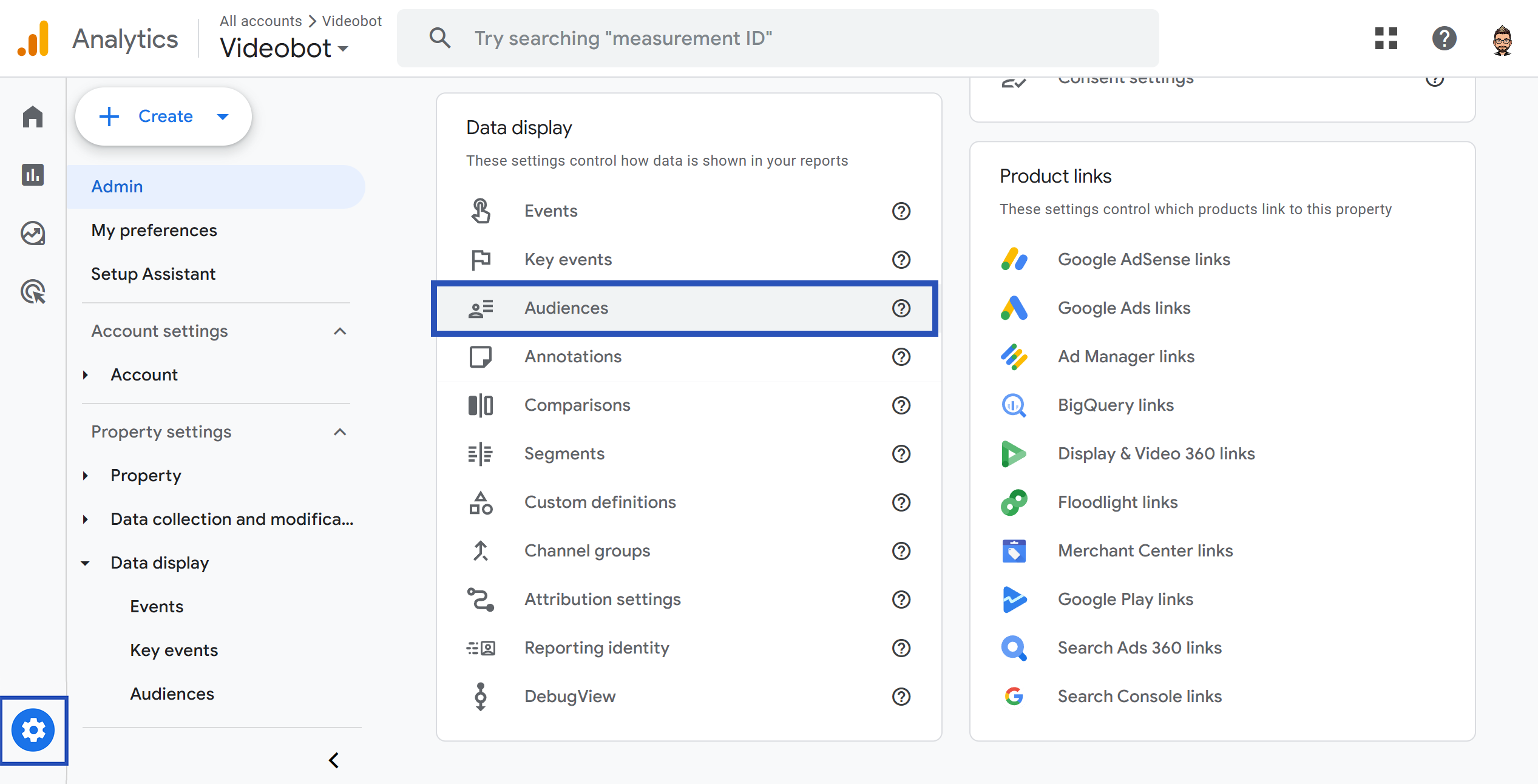
- Go to Admin (gear icon at the bottom left).
- In the Property column, select Audiences under the Audience section.
- Click + New audience.
- Select Create a custom audience from the available options.
Step 3: Create a Custom Audience Using Videobot Events
- Under Include users when, select Events.
- From the dropdown, select the Videobot event you identified earlier (e.g.,
videobot_video_completed).
Step 4: Refine Audience by Parameters (Optional)
You can further refine your audience by setting additional parameters:
- Event count: For instance, users who have triggered the event multiple times.
- Time period: Users who performed the action within a specified recent timeframe.
- Event parameters: Target users based on specific parameters, like users who watched a specific video.
Example of Targeting Specific Video:
- Select
videobot_video_completed. - Add Parameter
video_idand set it equal to your desired video identifier (found in your Videobot setup). - Set Event count to greater than or equal to 1.
- Choose your desired timeframe, e.g., in the last 30 days.
Step 5: Create Advanced Audiences with Sequences (Optional)
You can create audiences based on user behavior sequences:
- Include users who watched Video A and then Video B.
- Exclude users who completed a form submission.
This helps in effectively targeting or excluding existing customers, thereby optimizing your marketing budget.
Step 6: Review and Name Your Audience
- Provide a clear, descriptive name (e.g., "Completed Specific Video Viewers").
- Review the summary provided by GA4 to ensure it matches your targeting requirements exactly.
Step 7: Save and Activate Audience
- After confirming all criteria are correct, click Save.
- Your audience will now be available in Google Ads for targeted campaigns and retargeting.
Audience Use Cases Examples
Here are a few suggested audience segments you can create:
| Audience Name | Event | Recommended Usage |
|---|---|---|
| Videobot Viewers | videobot_video_started | Targeting users who have shown initial interest. |
| Completed Videobot Viewers | videobot_video_completed | Retargeting highly engaged users. |
| Interacted with Videobot | videobot_interaction | High-intent users who engaged directly. |
| Completed Specific Video | videobot_video_completed + video_id | Retarget users who completed watching a particular video. |
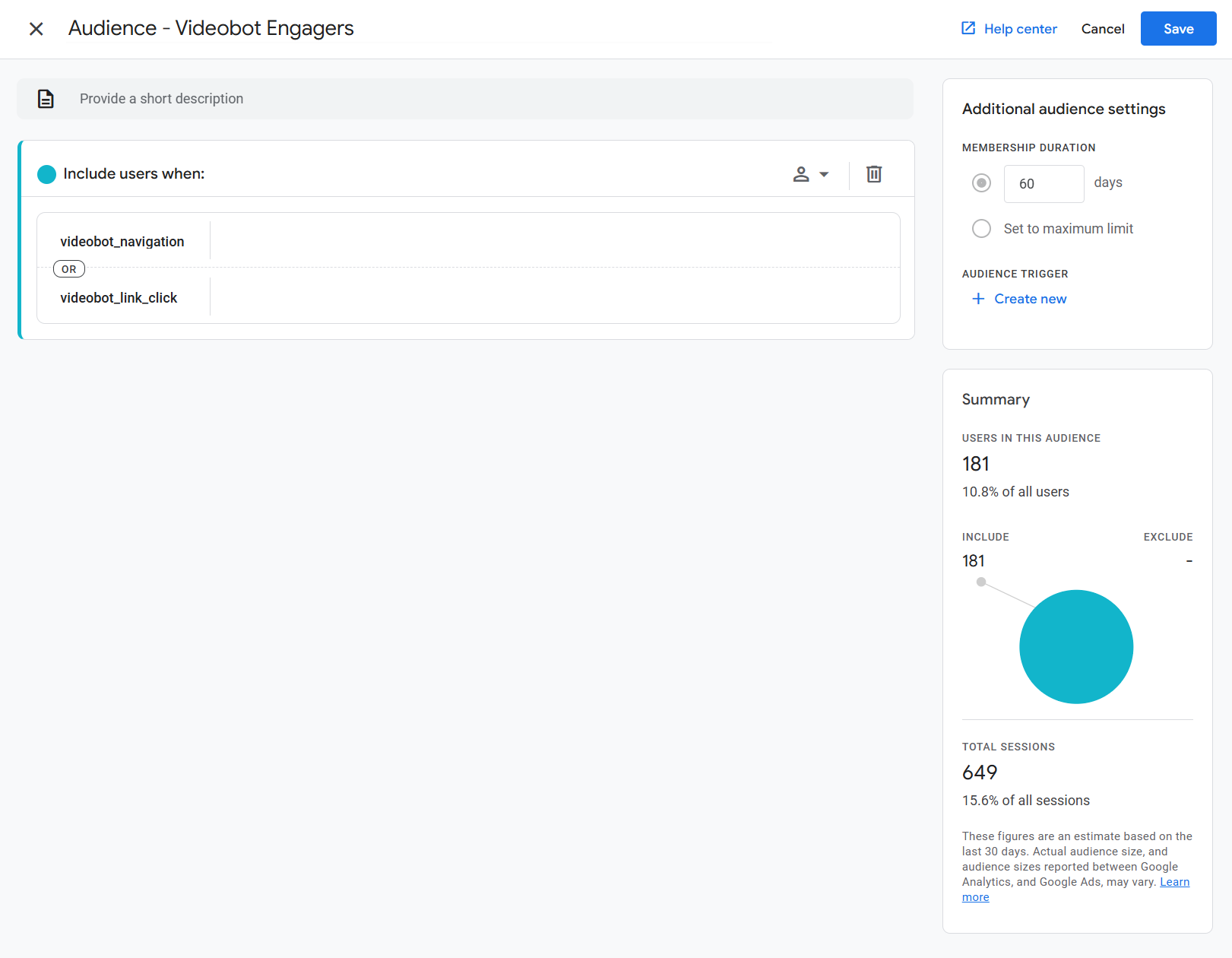
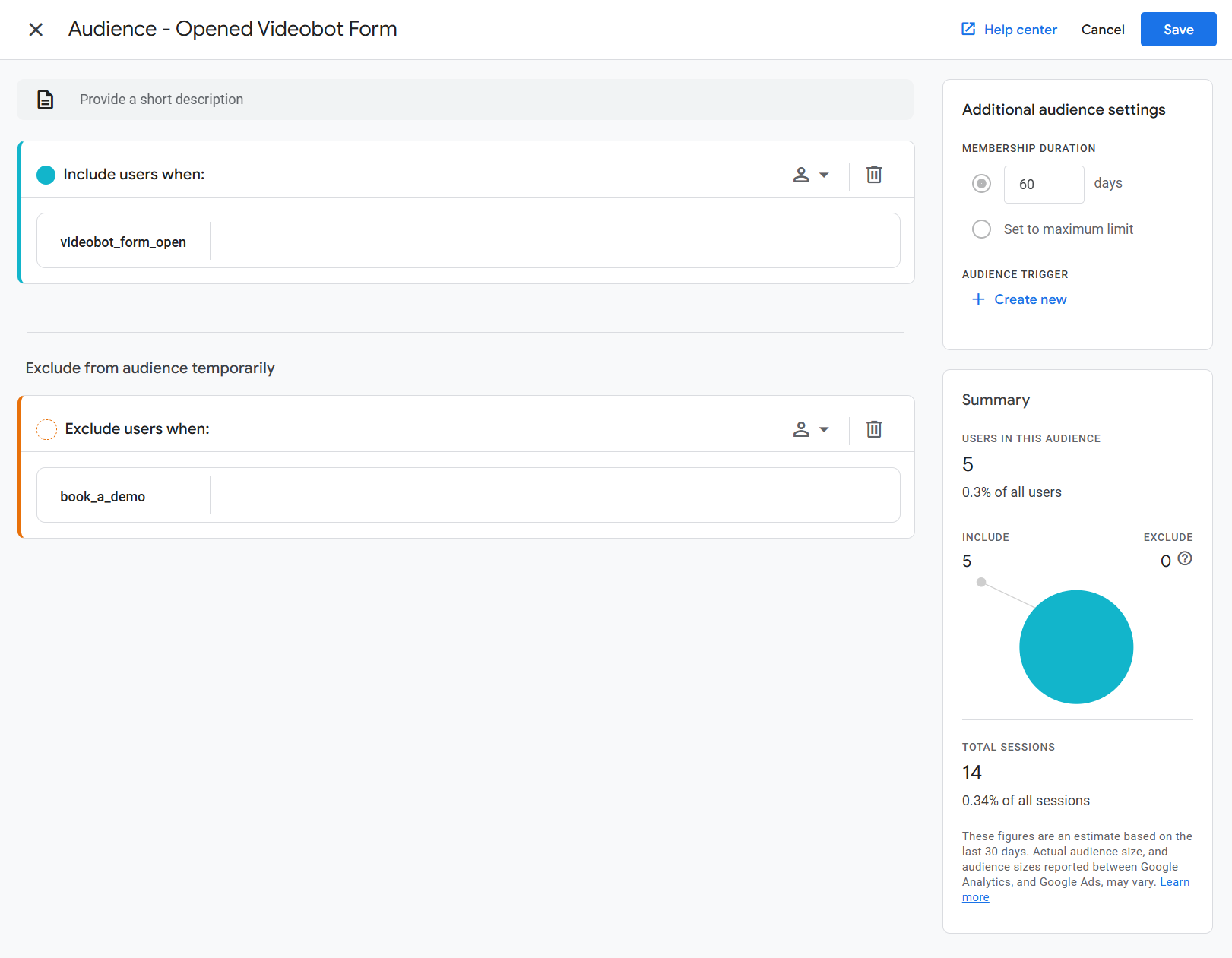
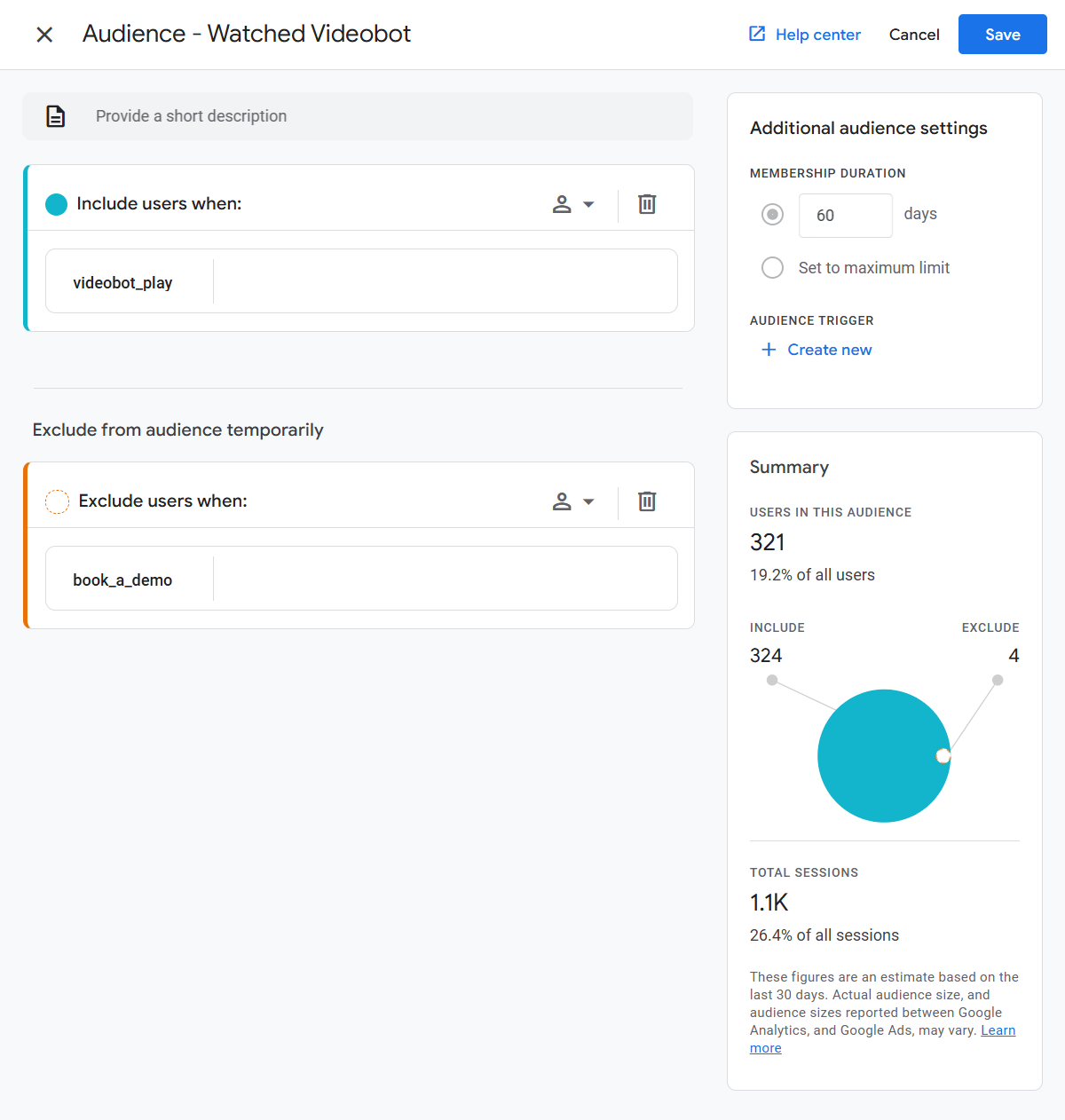
Example audiences:
Managing Audiences from the Dashboard
Videobot can connect directly to a GA4 property and let you create, edit, and archive audiences without leaving the dashboard. Audiences created this way are written to your GA4 property over Google's Analytics Admin API and become available in GA4 reporting and Google Ads exactly as if you had built them in GA4 itself.
Additional Prerequisites
In addition to the prerequisites listed at the top of this guide, the Google account used to connect must have edit access to the GA4 property. The integration requests both analytics.readonly and analytics.edit scopes from Google.
Connecting Google Analytics
- Open Account Settings → Integrations in the Videobot dashboard.
- Find the Google Analytics block and click Connect account.
- You'll be redirected to Google's consent screen. Sign in with the Google account that has access to the target GA4 property and approve the requested permissions.
- After approval, Google redirects back to Videobot and the connection is saved.
If something goes wrong during the redirect, the dashboard shows the message "Google Analytics authentication could not be completed. Please try again." Click Reconnect to restart the flow.
Selecting a Property
After connecting, the Manage Audiences panel shows a Select Property dropdown listing every GA4 property the connected Google account can access. Pick the property that audiences should be written to.
You can change the property at any time from the same panel.
Building an Audience
With a property selected, the panel lists every audience that exists in the property. Click New Audience to open the audience builder.
Starting from a Template
The top of the builder shows a Start from template section with a card for each pre-built template. Click a card to fill in the audience name, description, and a starting set of conditions for a typical Videobot use case; click the same card again to clear the form. You can edit any field after applying a template, or skip the templates entirely and build the audience from scratch.
The available templates are:
| Template | Includes users who |
|---|---|
| Videobot Viewers | triggered videobot_play |
| Completed Viewers | triggered videobot_end |
| Form Submitters | triggered videobot_form_submission |
| Specific Video Viewers | triggered videobot_end with a given videobot_video_id |
For the Specific Video Viewers template, replace the placeholder videobot_video_id value with the ID of the video you want to target.
Audience Settings
Every audience has the following top-level fields:
- Audience Name: the name shown in GA4. Must be unique within the property.
- Description: optional, helps identify the audience's purpose.
- Membership Duration (days): how long a user remains in the audience after qualifying.
Conditions
An audience is defined by one or more condition groups, organised under two sections:
- Include: users who match are added to the audience.
- Exclude: users who match are removed from the audience.
Within each section, you can add either:
- Condition group: a set of events combined with AND / OR. The user qualifies if their events match the group at the chosen scope.
- Sequence: events that must occur in a specific order. Each step can require the next step to immediately follow, or simply follow at some later point. Optionally, the entire sequence can be required to complete within a maximum duration.
Scopes
Each condition group and sequence has a scope that controls how GA4 evaluates the events:
- Across all sessions matches when the events occur anywhere in the user's history, even spread across different visits.
- Within the same session matches only when all required events occur in a single GA4 session.
- Within the same event matches only when every condition (event name and all parameter filters) is satisfied by the same individual event.
Use session or event scope when you care about the immediate context of a user's interaction with Videobot. Use the across-all-sessions scope for long-term audiences, e.g. anyone who has ever completed a video.
Adding Events
Inside a condition group or sequence step, click Add event to add a new event row, then pick an event from the Select event dropdown. The dropdown of event names and the parameters available for each event come from Videobot's GA4 event catalog. Only events Videobot emits (e.g. videobot_play, videobot_end, videobot_form_submission) and their declared parameters appear; arbitrary GA4 events are not selectable here. Switching the selected event clears any parameter or count filter that was set on the row.
To match any of several events, click OR on a row to add a sibling event in the same condition group. To match a combination of events, add another condition group instead.
For the full list of supported events and their parameters, see the Supported Events reference.
Parameter Filters
After selecting an event, click Parameter on the event row to refine the match by one of the event's parameters. A popover opens with a Parameter name dropdown (the parameters declared for the selected event) and a value field.
Some parameter values are picked from a list of your own items (e.g. video IDs, bot IDs); others are constrained to a fixed set (e.g. language codes); the rest accept free text or numbers. Operator options adjust automatically based on the parameter type: ID and fixed-set parameters use exact match; free-text parameters offer Exact match, Begins with, Ends with, Contains, and Regex; numeric parameters offer = equal to, < less than, and > greater than.
Click Apply to commit the filter. Repeat to add more parameter filters; multiple filters on the same event row are combined with AND.
Event Count Filter
Instead of a parameter filter, you can require the event to have happened a specific number of times. With no parameter filters yet on the row, click Event count to open the count popover, which offers:
- Operator: = equal to, < less than, or > greater than.
- Value: the threshold count.
- Time period (only available when the enclosing condition group uses the across-all-sessions scope):
- True at any point in time: count events across the user's entire history.
- In any N-day period: count events that occurred within any rolling window of N days.
- In the last N days: count events from the most recent N-day window.
A row can have parameter filters or a count filter, not both at the same time.
Editing and Archiving
From the audiences list you can:
- Edit: change an audience's display name and description. Targeting conditions cannot be changed.
- Archive: remove the audience. Archived audiences are soft-deleted in GA4 and cannot be restored.
Disconnecting
To disconnect Google Analytics, open Manage Audiences and click Disconnect. This removes the connection and all associated settings from Videobot. Audiences already written to GA4 are not deleted; they remain in your GA4 property until you archive them either from the dashboard (while still connected) or from GA4 directly.
You can reconnect at any time. Reconnecting against the same GA4 property re-discovers existing audiences and lists them in the panel.
On the GA4 side, the Google account used to connect must have edit access to the chosen property; without it, audience creation will fail with a permission error from Google.