

Creating Reporting Segments (GA4)
This guide explains how to create four permanent reporting segments in Google Analytics 4 (GA4) via the property settings. These segments let you compare both user-level and session-level behavior where Videobots were either engaged or not engaged, helping you analyze engagement and conversion rates.
After setting up these segments, they can be used in custom Google Analytics 4 explorations.
Prerequisites
Before you begin, ensure you have:
- Admin Access to GA4: You must have administrative rights in your GA4 property.
- Videobot Event Tracking Configured: See the article on configuring integrations to see the options for sending Videobot events to GA4.
Overview of the Segments
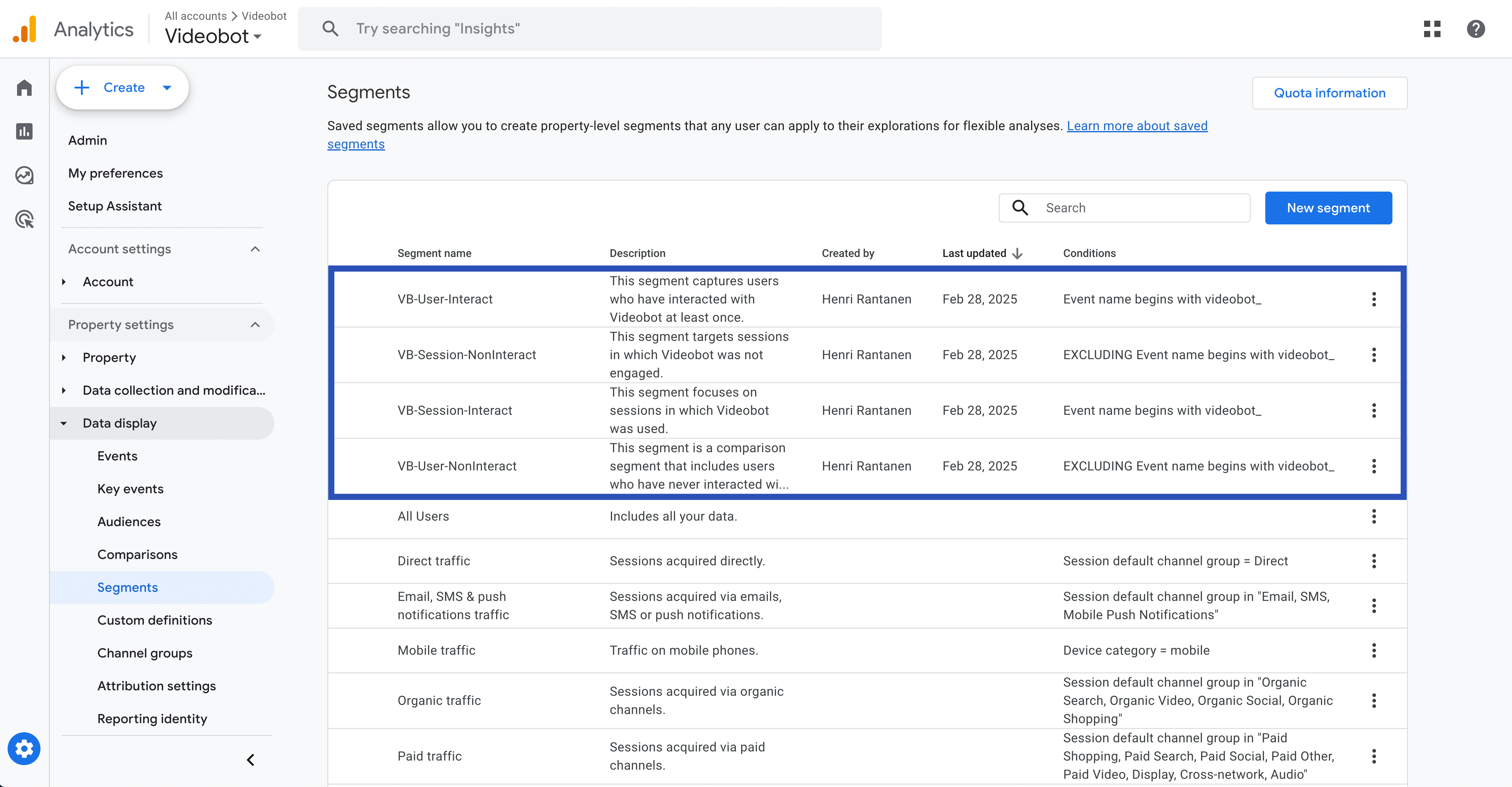
In this guide, you will create four segments with the following naming conventions:
User-Scoped Videobot Non-Interaction
- Segment Name:
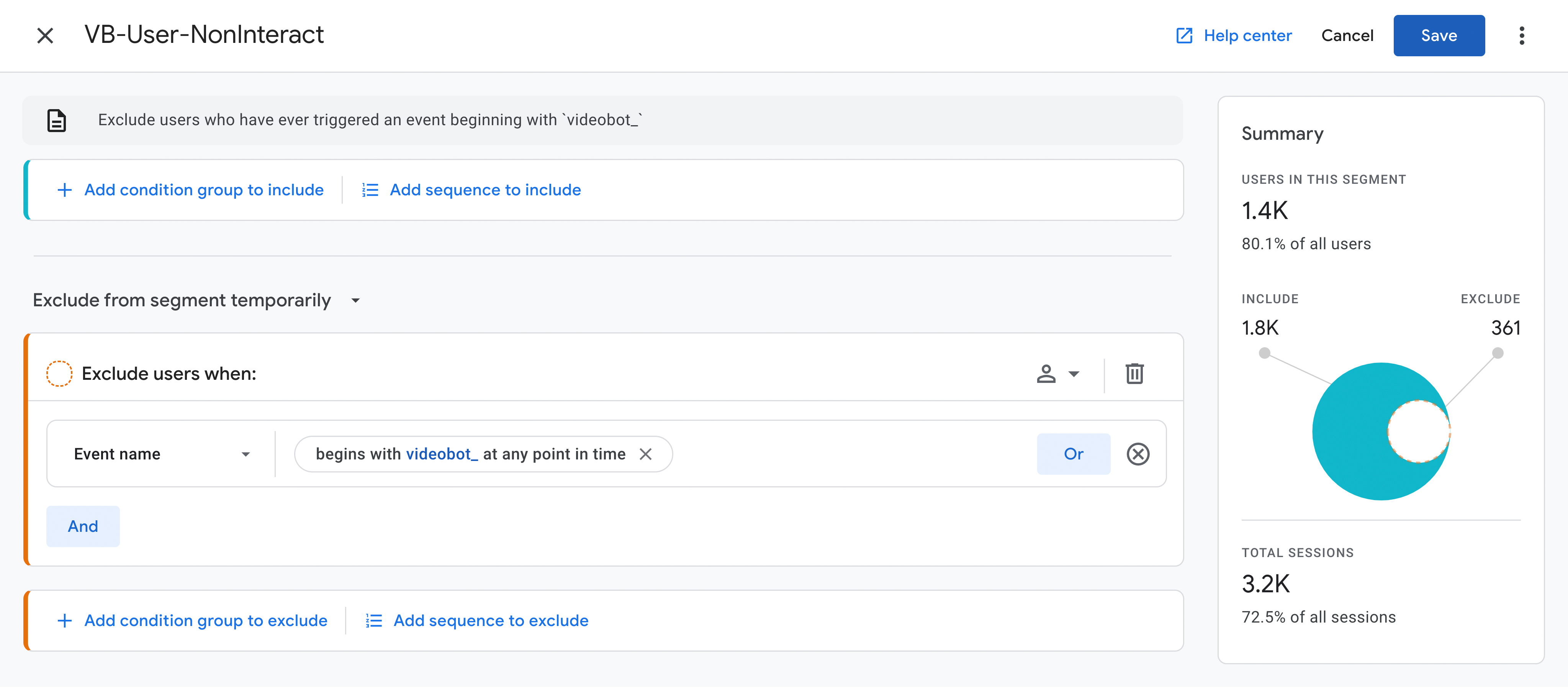
VB-User-NonInteract - Logic: Exclude users who have ever triggered an event beginning with
videobot_.
- Segment Name:
User-Scoped Videobot Interaction
- Segment Name:
VB-User-Interact - Logic: Include users who have triggered at least one event beginning with
videobot_.
- Segment Name:
Session-Scoped Videobot Non-Interaction
- Segment Name:
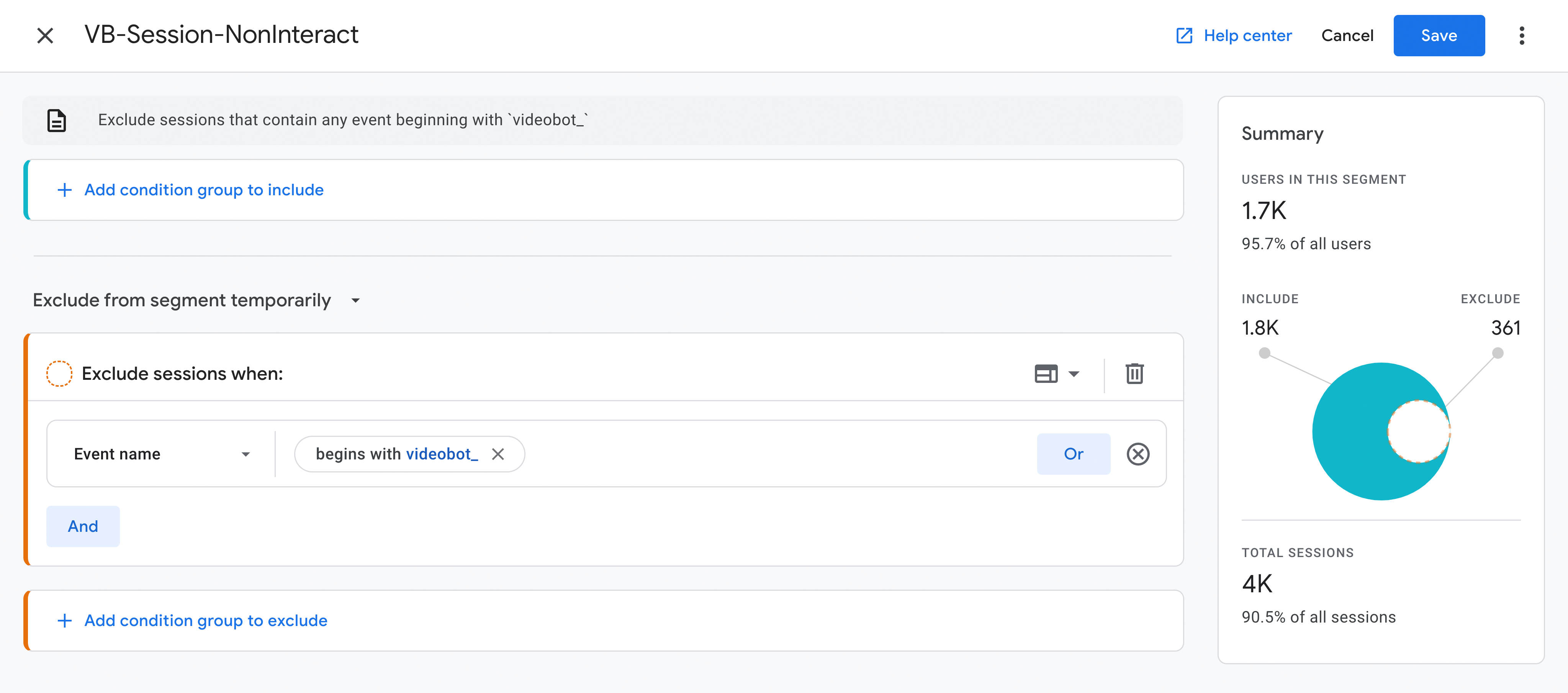
VB-Session-NonInteract - Logic: Exclude sessions that contain any event beginning with
videobot_.
- Segment Name:
Session-Scoped Videobot Interaction
- Segment Name:
VB-Session-Interact - Logic: Include sessions that have at least one event where the event name begins with
videobot_.
- Segment Name:
When to Use User‑Scoped vs. Session‑Scoped Segments
User-Scoped Segments: These segments capture behavior across all sessions for a given user. Use them when you need to analyze overall user engagement or long-term conversion trends (for example, comparing the lifetime conversion rates of Videobot interactors versus non-interactors).
Session-Scoped Segments: These segments focus on individual sessions. Use them when you want to evaluate the immediate impact of Videobot during specific sessions—especially useful when a user may interact with Videobot in some sessions but not in others.
Creating Permanent Segments in GA4
Permanent segments are created under the GA4 property settings, ensuring they are available for all users of your property—not just for the current browser session.
Navigating to the Segments Section
- Log in to your GA4 property.
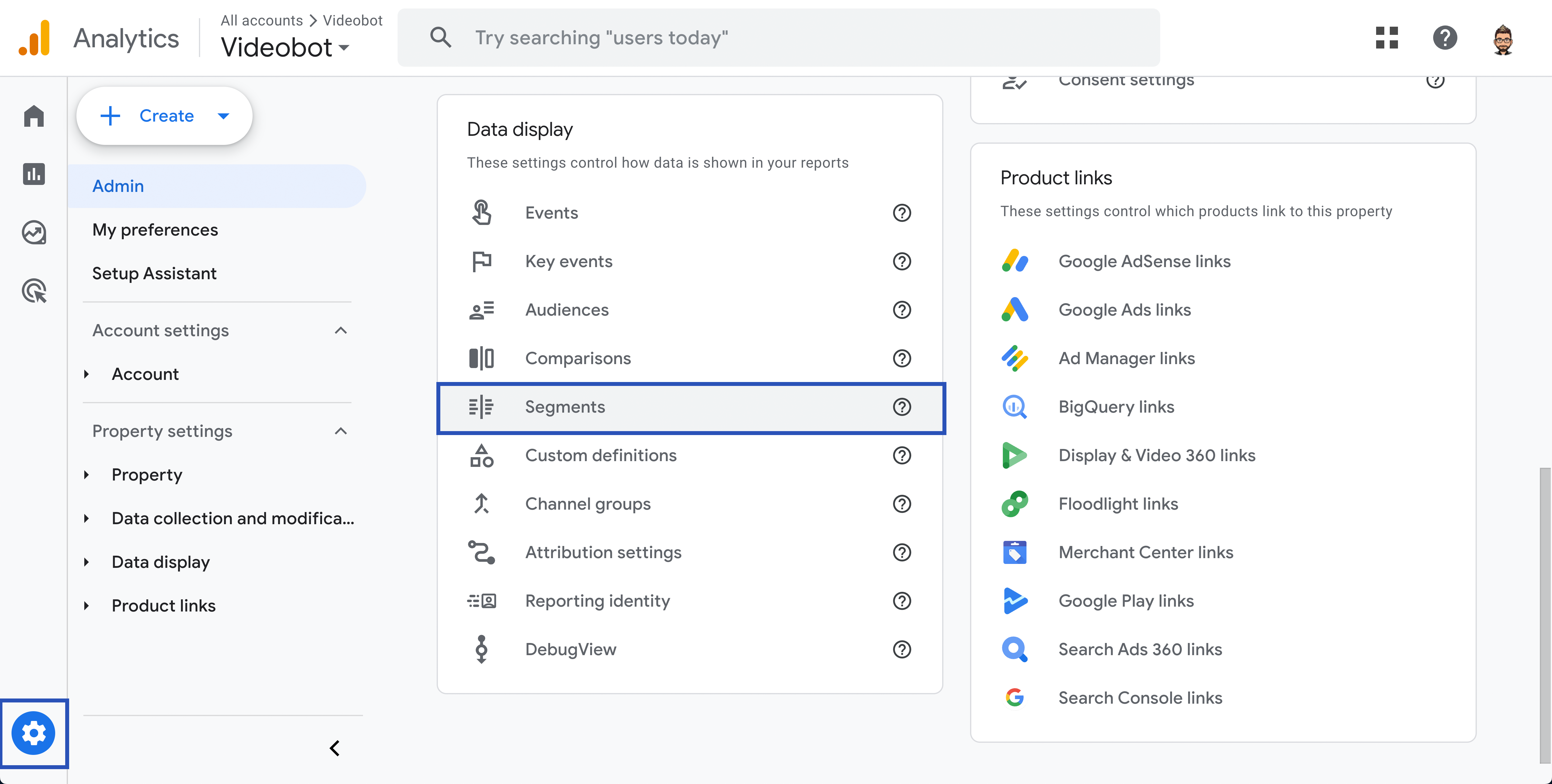
- In the left-hand navigation, click on Admin.
- Under the Property column, locate and click on Segments.
Creating the Videobot Segments
1. User-Scoped Videobot Non-Interaction (VB-User-NonInteract)
Description: This segment is a comparison segment that includes users who have never interacted with Videobot. It is needed to evaluate longer-term data and trends for users who did not experience any Videobot interaction.
- Click Create Segment and choose User Segment.
- Name the segment: Enter
VB-User-NonInteract. - Configure the Rule:
- Set the segment to exclude any user who has triggered an event where the event name begins with
videobot_.
- Set the segment to exclude any user who has triggered an event where the event name begins with
- Save the segment.
2. Session-Scoped Videobot Non-Interaction (VB-Session-NonInteract)
Description: This segment targets sessions in which Videobot was not engaged.
It helps evaluate immediate session-level behavior and serves as a control group when comparing session outcomes.
- Click Create Segment and choose Session Segment.
- Name the segment: Enter
VB-Session-NonInteract. - Configure the Rule:
- Set the segment to exclude sessions that contain any event where the event name begins with
videobot_.
- Set the segment to exclude sessions that contain any event where the event name begins with
- Save the segment.
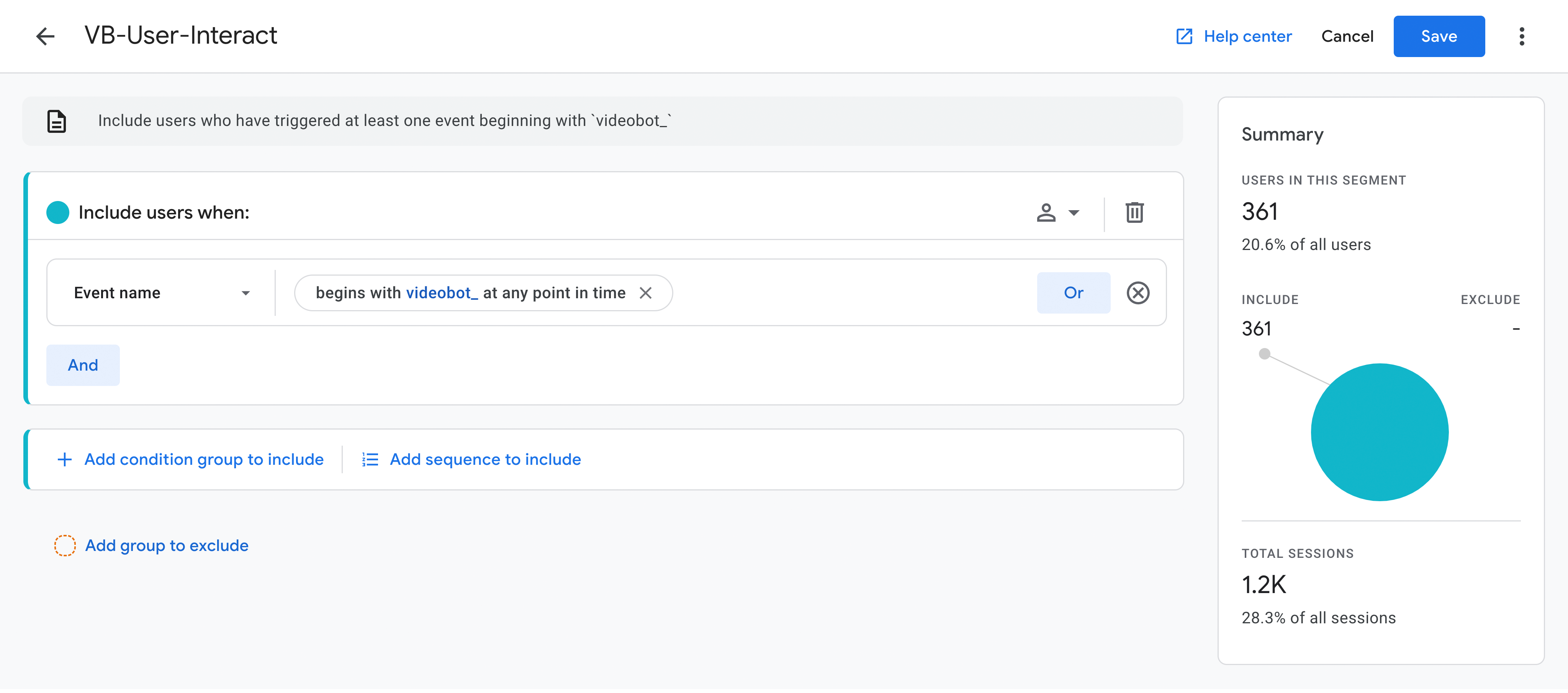
3. User-Scoped Videobot Interaction (VB-User-Interact)
Description: This segment captures users who have interacted with Videobot at least once.
It is crucial for analyzing how repeated interactions affect overall user engagement and long-term conversion trends.
- Click Create Segment and choose User Segment.
- Name the segment: Enter
VB-User-Interact. - Configure the Rule:
- Set the segment to include users who have triggered at least one event where the event name begins with
videobot_.
- Set the segment to include users who have triggered at least one event where the event name begins with
- Save the segment.
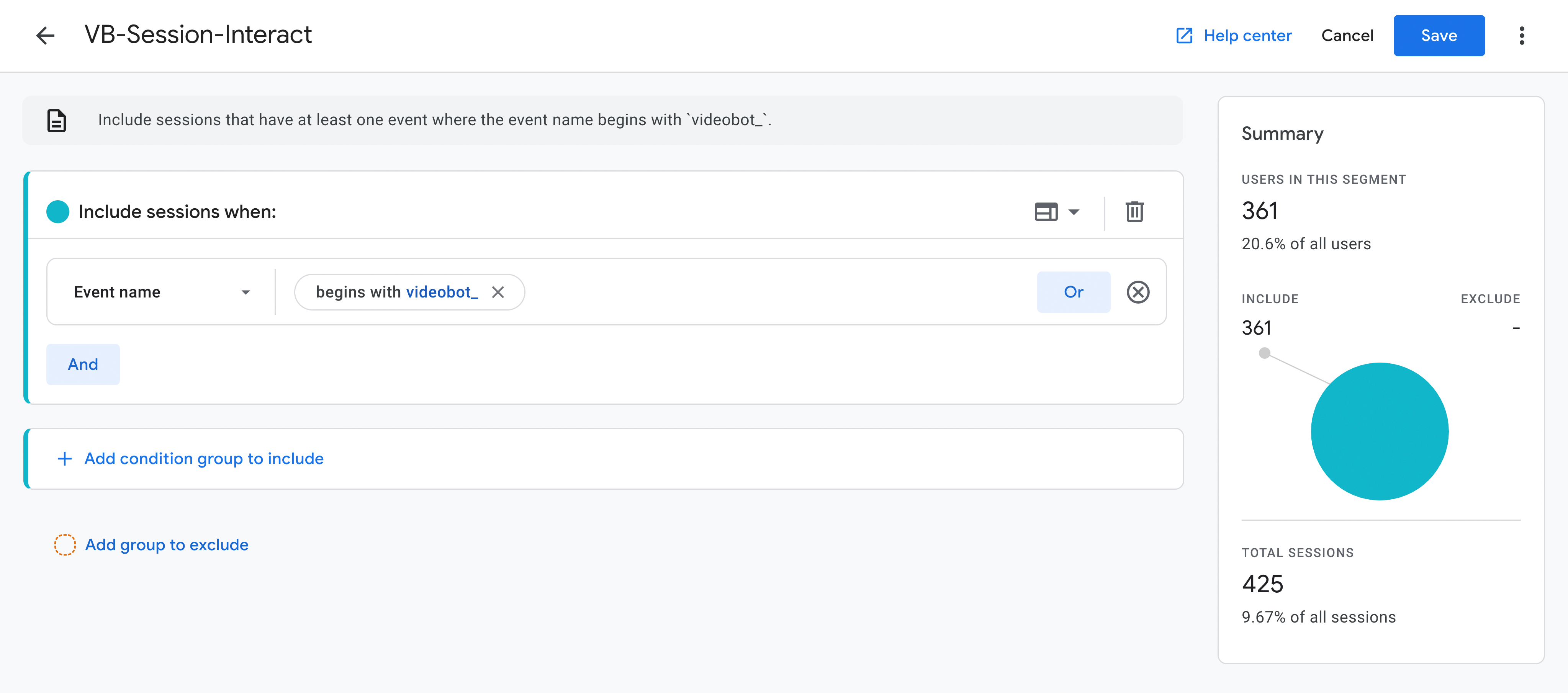
4. Session-Scoped Videobot Interaction (VB-Session-Interact)
Description: This segment focuses on sessions in which Videobot was used.
It is ideal for evaluating the immediate impact of Videobot interactions during a session, such as conversion events triggered in the same visit.
- Click Create Segment and choose Session Segment.
- Name the segment: Enter
VB-Session-Interact. - Configure the Rule:
- Set the segment to include sessions that have at least one event where the event name begins with
videobot_.
- Set the segment to include sessions that have at least one event where the event name begins with
- Save the segment.
Applying the Segments in Reports
Once created, these segments can be applied to any GA4 report to compare behavior:
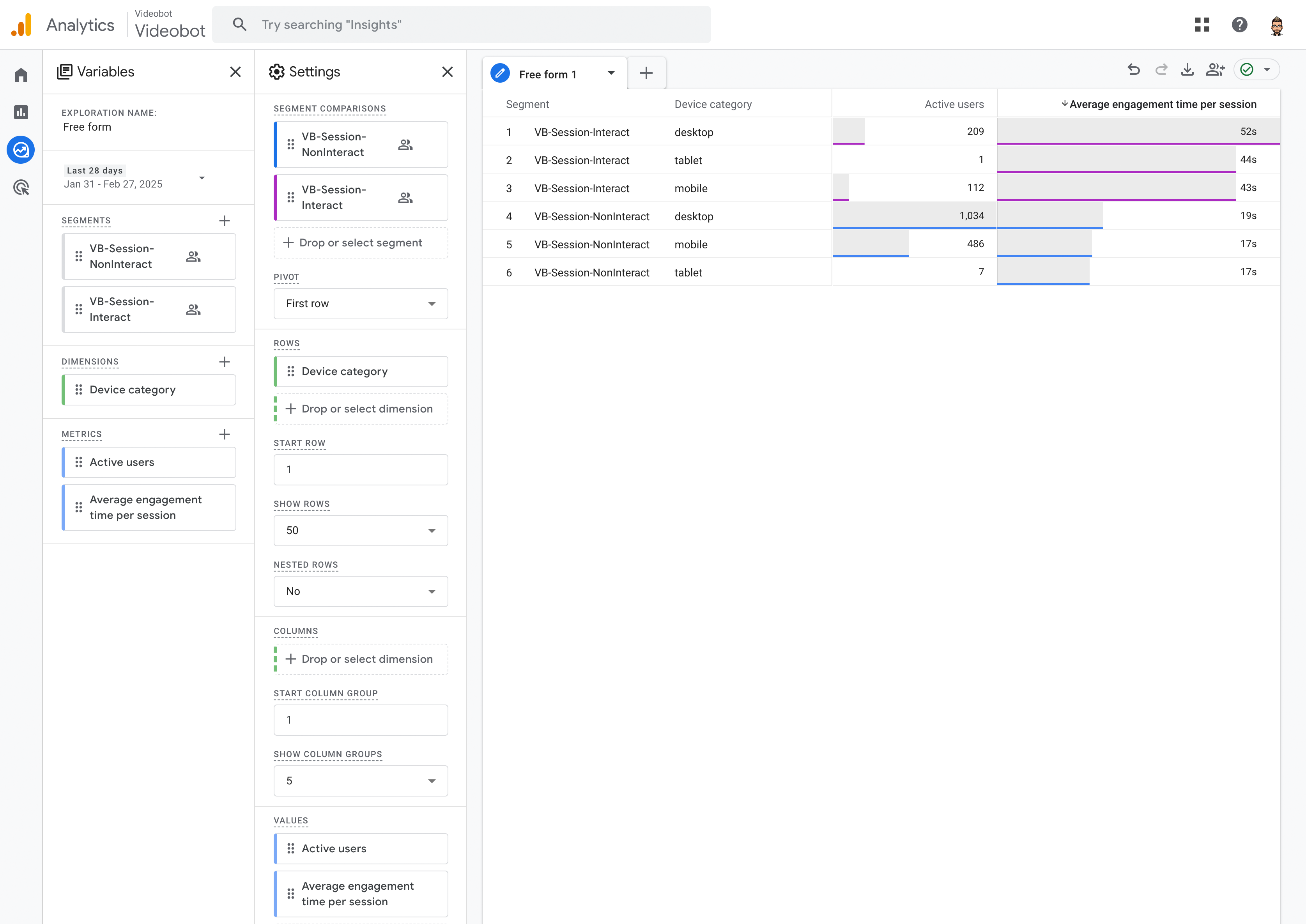
- Example Using the Default Engagement Report:
- Open the Explorations and create new Free form report.
- Add the four segments (
VB-User-NonInteract,VB-Session-NonInteract,VB-User-Interact,VB-Session-Interact) to the report. - Build new report you need
- Use these segments to analyze how Videobot influences key metrics such as engagement and conversion rates.
Usage Tip: The choice between user-scoped and session-scoped segments depends on your reporting needs. User-scoped segments provide insights into long-term behavior, while session-scoped segments help evaluate immediate session-level impacts.
Supported Events
To see a breakdown of all the events that the Videobot sends, see our Supported Events guide.